Quickstart Schema
This quickstart will help you work with the GraphQL Schema. We'll create a table called coupons and add some sample
data to it. Then, we'll query for the data using the Hasura Console GUI and the API Explorer.
DOCS E-COMMERCE SAMPLE APP
You can use this quickstart with any project, but it pairs well with our docs e-commerce sample app, which you can deploy to Hasura Cloud with one click below. If you've already deployed the sample app, access your existing project.

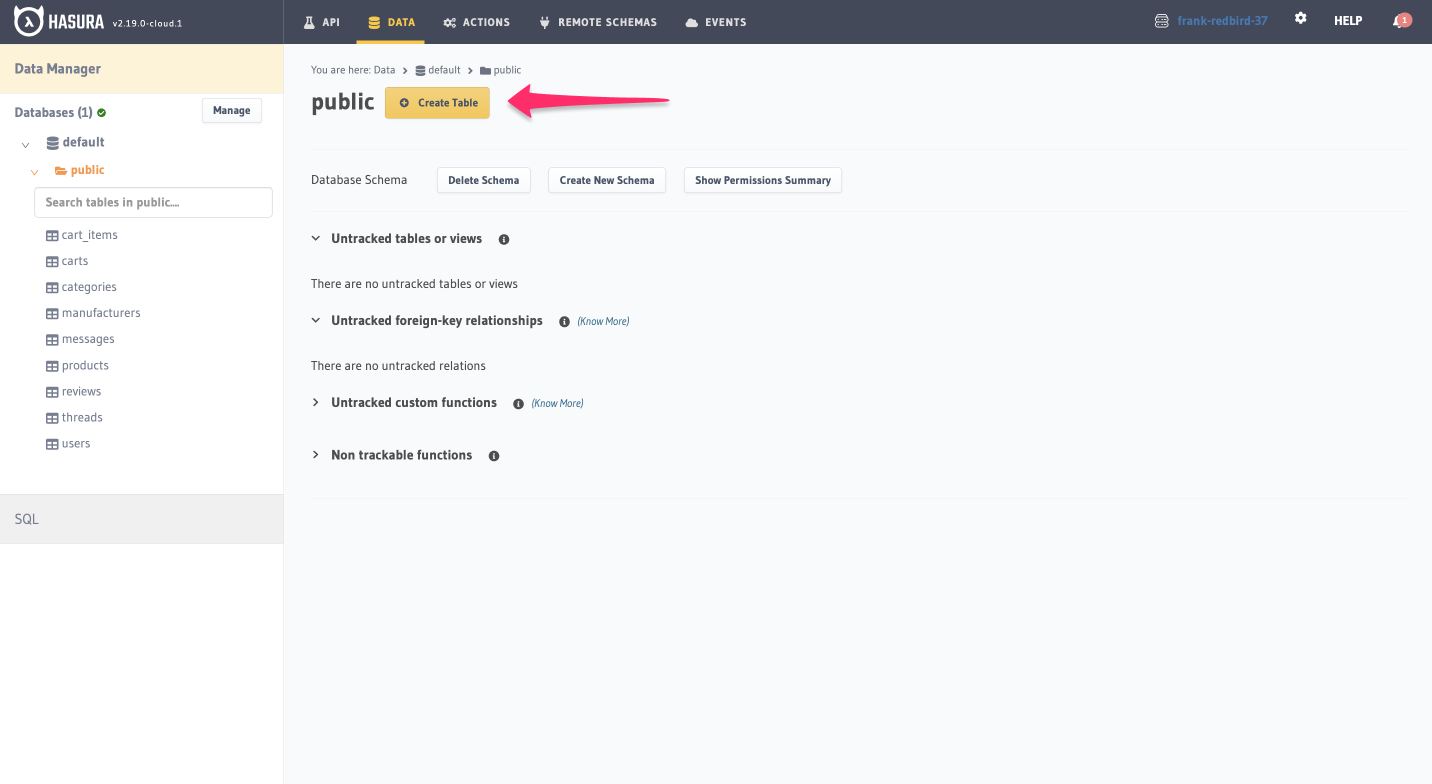
Step 1: Navigate to the Data tab
Once here, click the Create Table button at the top of the page:
Step 2: Enter the details
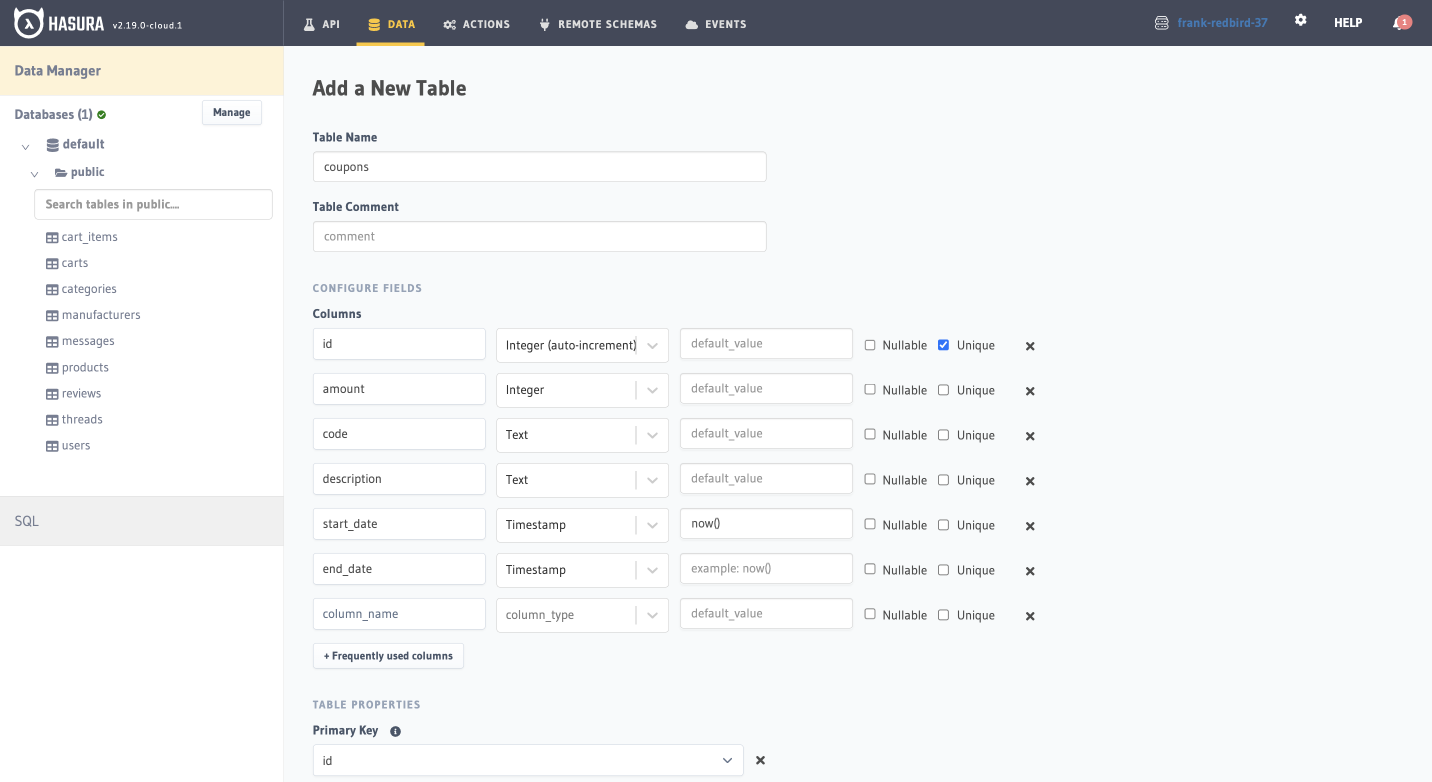
On this page, we'll begin by naming the table: in the Table Name field, enter coupons. From there, we'll add all the
necessary columns:
In the Columns section, we'll start with the Column Name field, enter id, with a data type of
integer (auto-increment) and check the box for unique. Leave nullable unchecked as this is a required column and
can't be null.
Then, we'll repeat the steps for the following columns:
amount(data type:integer)code(data type:text)description(data type:text)start_date(data type:timestamp), defaulting tonow()end_date(data type:timestamp)
Step 3: Add a primary key
In the Primary Key section, open the dropdown and select id from the list of columns. Then click, Add table.
Step 4: Test it out
We should have received confirmation that our table was created successfully. Now, let's test it out by adding a new
coupon on the Insert Row tab:
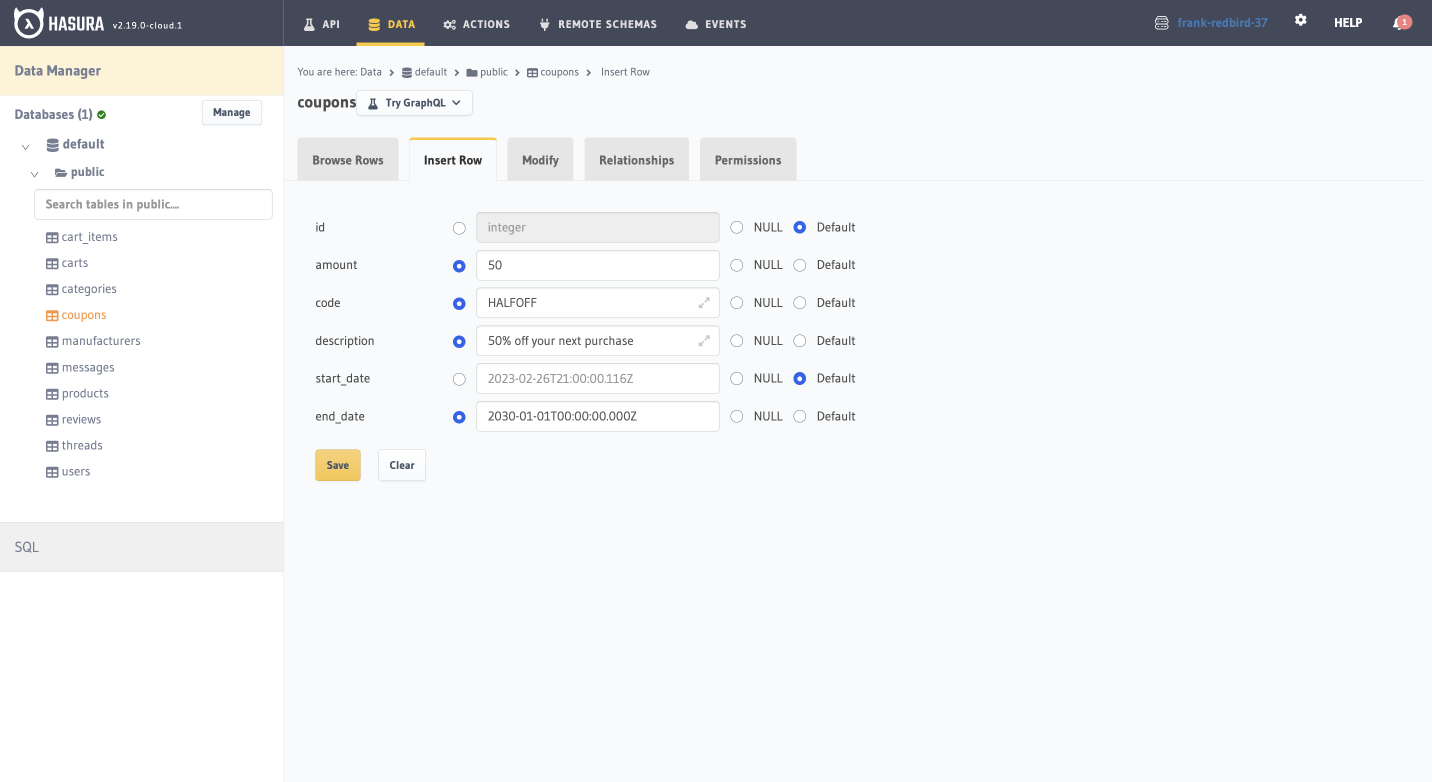
We can leave the id field blank, since it's auto-incrementing. Then, we'll add the following values:
amount:50code:HALFOFFdescription:50% off your next purchasestart_date: check theDefaultradio buttonend_date:2026-11-13 00:00:00
Upon clicking Save, we should receive confirmation of our new coupon. We can check its details by clicking the
Browse Rows tab or by running a query in our API Explorer.
Recap
What just happened? Well, you just modified your GraphQL API's schema! You can now query for coupons using the coupons
table. You can also add new coupons using the insert_coupons mutation.
You can continue to customize this table and create relationships between it and other tables, such as products or
orders to create a coupon system for your e-commerce store.