Console SSO with Google Workspace
Introduction
SSO can be configured with Google Workspace OAuth2 by setting up Dex as an OAuth2 proxy. Access can be configured for all users of a domain or just for members of certain groups.
This guide assumes you have a Hasura GraphQL Engine instance running with a valid license key. If you don't have one, you can get a license key via a 30-day free trial or by contacting the Hasura team.
SSO for Google Workspace is supported from versions v2.25.0 and above.
Step 1: Configure Hasura
The table below describes the configuration options for Google Workspace SSO. Hasura GraphQL Engine will expect these
values to be set as the value of the
HASURA_GRAPHQL_SSO_PROVIDERS environment variable:
| Key | Example | Description |
|---|---|---|
client_id | dex-login | Any name identifying the Dex client |
admin_roles | [email protected] | X-hasura-roles that should be given admin access to console |
name | Google Workspace Login | A display name for this login method on the console |
authorization_url | http://dex-endpoint-from-browser:port/dex/auth | Endpoint of Dex for auth request, should be reachable from browser |
request_token_url | http://dex-endpoint-from-browser:port/dex/token | Endpoint of Dex for token request, should be reachable from browser |
scope | openid offline_access groups | Oauth2 scopes to be used against Dex |
jwt_secret.type | RS256 | Key type Dex is configured with |
jwt_secret.jwk_url | http://dex-endpoint-from-hasura:port/dex/keys | JWK URL that is published by dex |
jwt_secret.issuer | http://dex-endpoint-from-browser:port/dex | Issuer that is configured with Dex, same as issuer in Dex configuration, this is typically the endpoint at which Dex can be reached at |
jwt_secret.claims_map | {"x-hasura-allowed-roles": {"path": "$.groups"},"x-hasura-default-role": {"path": "$.groups[0]"}} | Mapping groups parsed by Dex to roles on Hasura |
Using the information above as an example, you can configure the HASURA_GRAPHQL_SSO_PROVIDERS environment variable as
follows:
[
  {
    "client_id": "dex-login",
    "admin_roles": ["[email protected]"],
    "name": "Google Workspace Login",
    "authorization_url": "http://127.0.0.1:5556/dex/auth",
    "request_token_url": "http://127.0.0.1:5556/dex/token",
    "scope": "openid offline_access groups",
    "jwt_secret": {
      "type": "RS256",
      "jwk_url": "http://127.0.0.1:5556/dex/keys",
      "issuer": "http://127.0.0.1:5556:5556/dex",
      "claims_map": {
        "x-hasura-allowed-roles": {
          "path": "$.groups"
        },
        "x-hasura-default-role": {
          "path": "$.groups[0]"
        }
      }
    }
  }
]
For guidance on setting environment variables or flags for Hasura GraphQL Engine, see server configuration.
Step 2: Configure Dex
Your Dex configuration will need the following fields set to enable Google Workspace SSO. You can find a sample
configuration file below. This file should be saved in the /dex directory of your container.
Issuer
The base path of Dex and the external name of the OpenID Connect service. This is the canonical URL that all clients must use to refer to Dex. If a path is provided, Dex's HTTP service will listen at a non-root URL. This is the public URL at which Dex is available.
Example:
http://dex-domain:5556/dex
Static clients
This contains the id and redirectURIs. The id will reference the client_id in the Hasura configuration. The
redirectURIs will be the oauth callback URL of Hasura Console, which is at
http(s)://<hasura-endpoint>/console/oauth2/callback.
Example:
staticClients:
  - id: dex-login
    redirectURIs:
      - 'http://localhost:8080/console/oauth2/callback'
    name: 'Dex Login'
    public: true
Connectors
The connectors field is an array of objects that define the various connectors being used in the Dex configuration. Each
object in the array contains a type field that specifies the type of connector being used. Here, we'll use
type: google along with a series of fields that are specific to the Google connector.
connectors:
  - type: google
    id: google
    name: Google
    config:
      issuer: https://accounts.google.com
      # Connector config values starting with a "$" will read from the environment.
      # The clientID and clientSecret are obtained through the Google Console.
      clientID: <YOUR_CLIENT_ID>.apps.googleusercontent.com
      clientSecret: <YOUR_CLIENT_SECRET>
      redirectURI: http://127.0.0.1:5556/dex/callback
      hostedDomains:
        - company.com
      groups:
        - hasura-[email protected]
      serviceAccountFilePath: /dex/google-sa.json
      adminEmail: groups-[email protected]
Sample configuration file for Dex
Click here to see a sample configuration file for Dex.
# The base path of dex and the external name of the OpenID Connect service.
# This is the canonical URL that all clients MUST use to refer to dex. If a
# path is provided, dex's HTTP service will listen at a non-root URL.
# Public URL that dex is available at
issuer: http://127.0.0.1:5556/dex

# The storage configuration determines where dex stores its state. Supported
# options include SQL flavors and Kubernetes third party resources.
#
# See the documentation (https://dexidp.io/docs/storage/) for further information.
storage:
  type: sqlite3
  config:
    file: /var/dex/dex.db

# Configuration for the HTTP endpoints.
web:
  http: 0.0.0.0:5556
  allowedOrigins: ['*']
  # Uncomment for HTTPS options.
  # https: 127.0.0.1:5554
  # tlsCert: /etc/dex/tls.crt
  # tlsKey: /etc/dex/tls.key

# Uncomment this block to enable configuration for the expiration time durations.
# Is possible to specify units using only s, m and h suffixes.
# expiry:
#   deviceRequests: "5m"
#   signingKeys: "6h"
#   idTokens: "24h"
#   refreshTokens:
#     reuseInterval: "3s"
#     validIfNotUsedFor: "2160h" # 90 days
#     absoluteLifetime: "3960h" # 165 days

# Options for controlling the logger.
# logger:
#   level: "debug"
#   format: "text" # can also be "json"

oauth2:
  responseTypes: ['code'] # also allowed are "token" and "id_token"
  skipApprovalScreen: true
#
staticClients:
  - id: dex-login
    redirectURIs:
      - 'http://localhost:8080/console/oauth2/callback'
    name: 'Dex Login'
    public: true

connectors:
  - type: google
    id: google
    name: Google
    config:
      issuer: https://accounts.google.com
      # Connector config values starting with a "$" will read from the environment.
      clientID: <YOUR_CLIENT_ID>
      clientSecret: <YOUR_CLIENT_SECRET>
      redirectURI: http://127.0.0.1:5556/dex/callback
      hostedDomains:
        - company.com
      groups:
        - hasura-[email protected]
      serviceAccountFilePath: /dex/google-sa.json
      adminEmail: [email protected]
Step 3: Create a Service Account and Key
To allow Dex to fetch group information from Google, you will need to configure a service account for Dex to use. This
account needs Domain-Wide Delegation and permission to access the
https://www.googleapis.com/auth/admin.directory.group.readonly API scope.
To get group fetching set up:
- Follow the instructions to set up a service
account with Domain-Wide Delegation:
- During service account creation, a JSON key file will be created that contains authentication information for the
service account. This needs storing in a location accessible by Dex and you will set the
serviceAccountFilePathto point at it. - When delegating the API scopes to the service account, delegate the
https://www.googleapis.com/auth/admin.directory.group.readonlyscope and only this scope. If you delegate more scopes to the service account, it will not be able to access the API.
- During service account creation, a JSON key file will be created that contains authentication information for the
service account. This needs storing in a location accessible by Dex and you will set the
- Enable the Admin SDK .
- Add the
serviceAccountFilePathandadminEmailconfiguration options to your Dex config.serviceAccountFilePathshould point to the location of the service account JSON key file.adminEmailshould be the email of a Google Workspace user with a minimum of theGroups Reader (BETA)Role assigned. The service account you created earlier will impersonate this user when making calls to the admin API. A valid user should be able to retrieve a list of groups when testing the API .
Step 4: Update your deployment
Finally, you'll need to configure your deployment with these changes. Here is a Docker Compose example, with the configuration:
version: '3.8'

services:
  postgres:
    image: postgres:15
    restart: always
    volumes:
      - postgres_data:/var/lib/postgresql/data
    ports:
      - '5432'
    environment:
      POSTGRES_PASSWORD: postgrespassword

  hasura-pro:
    image: hasura/graphql-engine:v2.25.0
    ports:
      - '8080:8080'
    depends_on:
      - postgres
    restart: always
    environment:
      HASURA_GRAPHQL_EE_LICENSE_KEY: <YOUR_EE_LICENSE_KEY>
      HASURA_GRAPHQL_ADMIN_SECRET: <YOUR_ADMIN_SECRET>
      HASURA_METADATA_DATABASE_URL: postgres://postgres:postgrespassword@postgres:5432/postgres?sslmode=disable
      PG_DATABASE_URL: postgres://postgres:postgrespassword@postgres:5432/postgres?sslmode=disable
      HASURA_GRAPHQL_ENABLE_CONSOLE: 'true'
      HASURA_GRAPHQL_DEV_MODE: 'true'
      HASURA_GRAPHQL_ENABLED_LOG_TYPES: startup,http-log,webhook-log,websocket-log,query-log
      HASURA_GRAPHQL_ENABLED_APIS: metadata,graphql,config,metrics
      HASURA_GRAPHQL_METRICS_SECRET: <YOUR_METRICS_SECRET>
      HASURA_GRAPHQL_CONSOLE_ASSETS_DIR: /srv/console-assets
      HASURA_GRAPHQL_SSO_PROVIDERS:
        '[{"client_id": "dex-login","admin_roles": ["[email protected]"], "name": "Dex
        Login","authorization_url": "http://127.0.0.1:5556/dex/auth","request_token_url":
        "http://127.0.0.1:5556/dex/token","scope": "openid offline_access groups","jwt_secret": {"type":
        "RS256","jwk_url": "http://dex:5556/dex/keys","issuer": "http://127.0.0.1:5556/dex","claims_map":
        {"x-hasura-allowed-roles": { "path": "$.groups" },"x-hasura-default-role": { "path": "$.groups[0]" }}}}]'

  dex:
    image: dexidp/dex
    restart: always
    volumes:
      - ./dex/config.docker.yaml:/etc/dex/config.docker.yaml
      - ./dex/google-sa.json:/dex/google-sa.json
    ports:
      - '5556:5556'

volumes:
  postgres_data:
Step 5: Log in
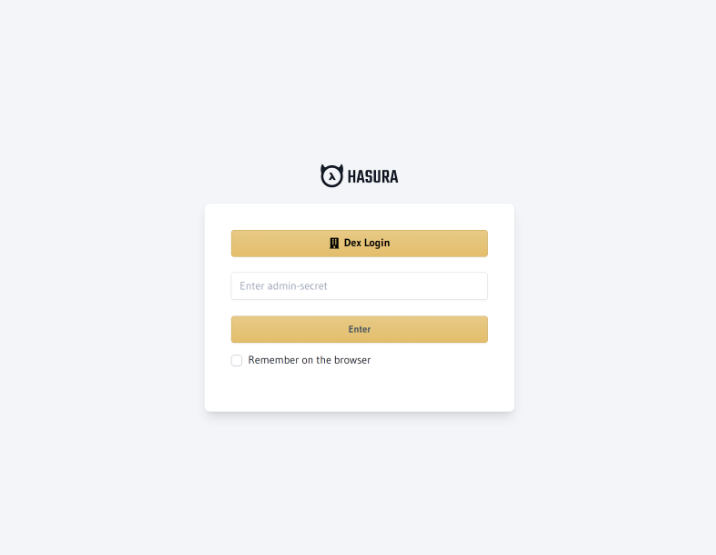
At this point, you should see a Dex Login option on the Hasura Console. Now, you're ready to log in with your Google
Workspace account 🎉